
USB-C Hub Buyer's Guide: Key Selection Tips
Modern laptops and tablets impress with their sleek designs and high portability. However, this minimalism often comes at the cost of connectivity options. Anyone looking to connect more than just one or two peripherals quickly runs into a problem. A USB-C hub or a USB-C docking station promises a solution, but the market is confusing and filled with products that have hidden flaws.
As your Joybuy Product Recommendation Officer, I'm here to help you identify the common pitfalls and make an informed decision. We'll focus on the technical specifications that truly matter, so you can find a solution that permanently streamlines your workday.
The 3 Most Common Pitfalls When Buying a USB-C Hub
Many budget-friendly models entice with a long list of ports but prove unreliable in daily use. Pay special attention to these three weaknesses:
- Unstable Performance Under Load: A frequent annoyance is when connections drop as soon as multiple ports are used simultaneously. If your Wi-Fi becomes unstable when you plug in an external hard drive, or the monitor flickers, it's often due to low-quality internal chips that can't handle the data load.
- Misleading "4K" Claims: Many hubs advertise "4K HDMI" but fail to mention the refresh rate. A rate of just 30 Hz is insufficient for most applications, leading to a jerky mouse cursor and noticeable lag. For a smooth workflow, especially in video editing or even just moving windows, 60 Hz is the standard.
- Insufficient Charging Power (Power Delivery): A hub with Power Delivery (PD) is supposed to charge your laptop while in use. However, many users find that their device's battery slowly drains despite the charging cable being connected. The reason: the hub itself consumes power (often 10–15 watts), and the power passed through to the laptop isn't enough to sustain it under load.
What Really Matters: The Decisive Parameters
To avoid the problems mentioned above, you should check three core aspects before buying. These define the performance and reliability of your future USB-C multiport adapter.
1. Port Specifications: More Than Just a Number
The sheer number of ports isn't the whole story. The specification of each individual port is crucial for performance.
- USB-A Ports: Pay attention to the standard. USB 3.0 (also known as USB 3.2 Gen 1) offers data rates of up to 5 Gbps, which is sufficient for external hard drives and fast USB drives. USB 2.0 (480 Mbps) is only suitable for mice or keyboards. For even faster SSDs, ports with 10 Gbps (USB 3.2 Gen 2) are advantageous.
- Video Outputs (HDMI/DisplayPort): For a 4K monitor, a port that supports 4K at 60 Hz is essential. This typically requires an HDMI 2.0 or DisplayPort 1.2 connection. Check this detail carefully in the product's data sheet.
- Network Port: A Gigabit Ethernet port (RJ45) is often more reliable for a stable and fast internet connection in the office or at home than Wi-Fi. A USB-C adapter with HDMI and LAN is therefore a highly sought-after combination.
2. Power Delivery (PD): Choosing the Right Wattage
If you plan to charge your laptop through the hub, the PD output is a critical factor. Check the wattage of your original laptop power adapter (e.g., 65W, 96W). The Type-C hub should support a PD input that is at least 15 watts higher than your power adapter's rating to compensate for the power consumption of the hub and connected devices. A hub with 100W PD is a safe bet for most modern laptops, including a USB-C hub for MacBook.
3. Compatibility: USB-C Is Not the Same as Thunderbolt
Although the connectors look identical, there are technological differences. A standard USB-C hub will work on a Thunderbolt port, but the reverse is not always true. A Thunderbolt dock offers significantly higher bandwidth (up to 40 Gbps) and can often drive two 4K monitors at 60 Hz—a requirement that many simple USB-C hubs cannot meet. For most users, however, a high-quality laptop docking station with a USB-C connection is perfectly sufficient and more cost-effective.
Products for specific needs
Based on the criteria above, we have identified a few models that represent a suitable solution for specific user groups.
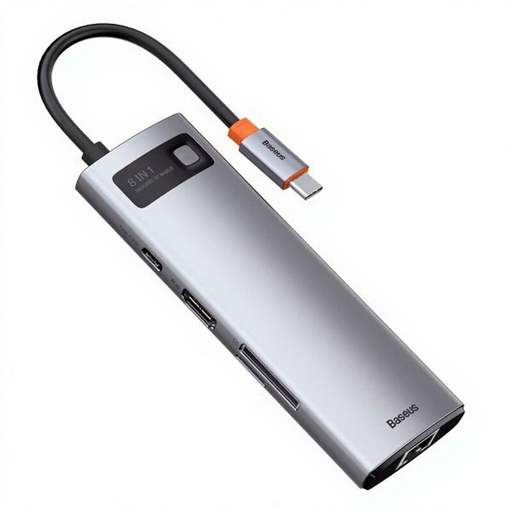
Baseus Metal Gleam Series 8-in-1 Multifunctional Type-C HUB Docking Station
Why This Fits Their Persona: Ideal for users who frequently commute between the office, home, and client meetings. The compact aluminum housing is robust, and the port selection covers all common scenarios—from presentations via HDMI to fast data transfers from an SD card.
According to the manufacturer, independent chips for each port ensure stable performance, even with simultaneous use. Support for 100W Power Delivery ensures that even high-performance laptops are adequately supplied with power.
Comprehensive connectivity in a compact form factor: Offers Gigabit Ethernet, 4K HDMI, USB 3.0, and SD/TF card readers. The sturdy metal casing also aids in heat dissipation.
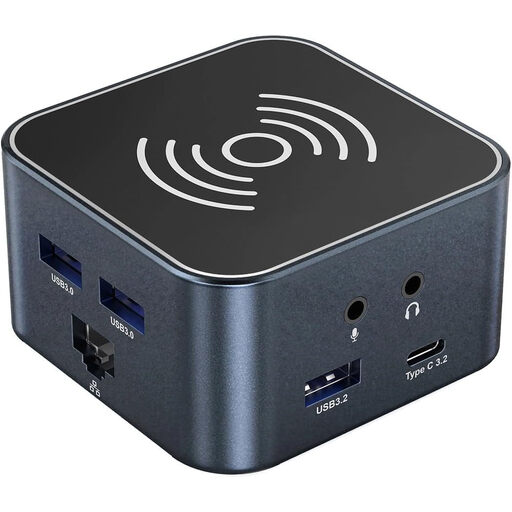
Wozinsky WHBC09Y8S 12-in-1 Multifunctional USB-C Hub
Why This Fits Their Persona: Perfect for video producers, designers, or developers who require maximum performance. Fast data transfer for large files and a smooth 4K display are not optional extras here, but fundamental requirements.
This model directly addresses the pitfall of misleading video specs: it explicitly supports 4K resolution at a smooth 60 Hz. Additionally, the USB 3.2 Gen 2 ports offer a data rate of up to 10 Gbps, which significantly speeds up data transfers.
High performance for video and data. The integrated wireless charging function (up to 15W) for smartphones is a practical extra that keeps the desk tidy. The large number of 12 ports offers maximum flexibility.
![DELL Pro Plus P3225QE LED Display 80 cm [31.5] 3840 x 2160 pixels 4K Ultra HD LCD Black,Grey Pro 32 Plus 4K USB-C Hub Monitor](https://images4.joy-sourcing.com/product/s512x512_jfsintlpro-000-product/t1/4294967296/6750208/61098360280997/516685/69cf83d0Ed961229c/42b10752b5083d5e.png)
DELL Pro Plus P3225QE 4K USB-C Hub Monitor
Why This Fits Their Persona: For anyone who wants a permanent, tidy desk and aims to minimize cable clutter. Instead of buying a separate hub, the docking station is integrated directly into a high-quality monitor. A single cable to the laptop is all it takes for video, audio, data, network, and power.
As an integrated solution from a major brand, all components are perfectly matched, ensuring maximum stability. It delivers a clearly defined charging power of up to 90W and a native 4K resolution at 60 Hz, bypassing all the typical pitfalls of external hubs.
The ultimate single-cable solution. The monitor itself becomes the central docking station with Gigabit Ethernet, multiple USB ports, and powerful charging. The IPS Black panel also offers high image quality with excellent contrast.
Looking for more options?
We have compiled a complete, up-to-date list of products that fully meet these strict selection criteria and safety regulations.
1. Does a USB-C hub need an external power supply? It depends on the hub. Smaller, portable hubs are often "bus-powered," meaning they draw power directly from the laptop's USB-C port. This is sufficient for low-power devices like a mouse or a USB stick. Hubs with Power Delivery passthrough (PD) have an additional USB-C input where you connect your laptop's power adapter. This is the only way to reliably power the hub, all connected devices, and the laptop itself.
2. What is the difference between a USB-C hub and a Thunderbolt docking station? The main difference is bandwidth. USB-C (depending on the version) offers up to 10 or 20 Gbps. Thunderbolt 3 or 4 provides up to 40 Gbps. This higher bandwidth allows a Thunderbolt dock to run more demanding setups, such as two 4K monitors at 60 Hz simultaneously. For most users who connect one monitor and standard peripherals, a high-quality USB-C hub is sufficient.
3. Is it normal for a USB-C hub to get warm during operation? Yes, a certain amount of heat is normal. Converting energy for the charging function and transferring large amounts of data generates heat. Models with an aluminum casing use the surface for passive cooling, which is why they can feel warm to the touch. As long as the hub doesn't get excessively hot or cause malfunctions, there is generally no reason for concern.