
Buying a monitor: The key things to consider for the office, gaming and working from home
A new monitor should do more than simply display a large picture. Depending on how you plan to use it, resolution, refresh rate, ports, ergonomics and panel technology will all matter to different degrees. If you focus solely on high refresh rates or impressive-sounding HDR claims, you could end up paying for features you’ll barely use with your setup.
Three common buying mistakes are:
- Choosing the highest refresh rate without suitable hardware: You can only make full use of a 240 Hz monitor if your PC, graphics card and game can deliver the required frame rates.
- Choosing a resolution without considering screen size: QHD on a 27-inch screen has a different pixel density from QHD on a 34- or 32-inch screen. With ultrawide models, you should also check that your graphics card supports the aspect ratio.
- Checking the ports only after you’ve bought it: A USB-C monitor doesn’t automatically transmit video and data or supply power. Check the specifications for DisplayPort Alternate Mode and Power Delivery.
Which monitor specifications matter before you buy
1. Find the right balance between resolution and screen size
A Full HD monitor with a resolution of 1920 × 1080 pixels may be enough for everyday office work, word processing and smaller workspaces. A 24-inch model such as the Acer Vero B247YGbmiqprx has an IPS panel, a 120 Hz refresh rate and a height-adjustable stand.
A QHD monitor with a resolution of 2560 × 1440 pixels gives you more screen space and sharper detail on a 27-inch screen. This makes it a good choice for spreadsheets, photo editing and gaming. 34-inch models often use UWQHD, with a resolution of 3440 × 1440 pixels. A 4K monitor with a resolution of 3840 × 2160 pixels is better suited to users who need a high level of detail for media editing, design or high-resolution content.
Before you buy, measure the depth of your desk. A 27-inch monitor takes up considerably less space than a 34-inch monitor. A 49-inch monitor with a 32:9 aspect ratio can replace two screens, but you’ll need a wide, sturdy desk.
2. Don’t confuse refresh rate with response time
Refresh rate is measured in hertz. When connected to suitable hardware, a 180 Hz monitor or 240 Hz monitor can display movement more smoothly than a 60 Hz model. For office applications, 100 to 120 Hz is already a practical range for smoother scrolling.
Response time, on the other hand, describes how quickly a pixel changes colour. Manufacturer claims such as ‘1 ms’ can vary depending on the measurement method, such as GTG or MPRT. That’s why you should consider refresh rate, response time and the connection you’ll use together. On many gaming monitors, DisplayPort provides the bandwidth needed for high resolutions and refresh rates.
Adaptive Sync technologies such as AMD FreeSync or G-Sync compatibility can adjust the display output to match your graphics card’s frame rate. Actual support depends on your graphics card, driver, cable and monitor settings.
3. Check the panel, ergonomics and ports
An IPS monitor typically offers wide viewing angles and consistent colour reproduction. VA panels often have a higher stated contrast ratio, while OLED models use self-illuminating pixels. With an OLED monitor, check the manufacturer’s guidance on static images and maintenance features. A Mini LED monitor, by contrast, uses an LCD display with zoned backlighting.
A curved monitor can angle the edges of a 21:9 or 32:9 screen towards you. How useful this is depends on your viewing distance and how you work. For long days in the office, height adjustment, tilt, swivel and pivot functions are often more important than a curved screen.
When checking the ports, look out for the following:
- USB-C with Power Delivery: Check the specific charging power, such as 90 or 100 watts.
- USB hub and Ethernet: Useful for a tidy home office, but only if the monitor has these features.
- HDMI and DisplayPort: Check the version of each port and whether it supports your chosen resolution at the maximum refresh rate.
- VESA mount: Important if you’re planning to use a monitor arm or wall mount.
In Germany and the EU, you should also check markings such as CE, information on the WEEE Directive and the energy consumption details on the product data sheet. Certifications such as TCO or EPEAT can provide additional information on environmental and product standards, but they don’t replace checking that the monitor meets your own requirements.
Our picks by user profile
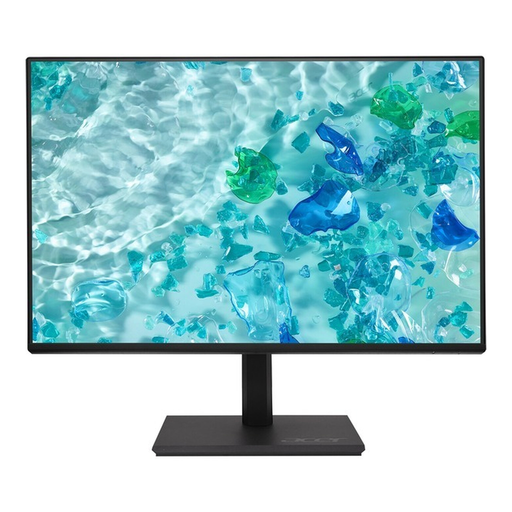
Acer Vero B247YGbmiqprx 24-inch monitor
Why this product suits this profile: The 24-inch screen takes up relatively little desk space, making it a good fit for office work, studying and a compact home office.
The product specifications clearly state the panel type, ports and ergonomic features, rather than focusing only on a fast response time.
IPS panel, 120 Hz refresh rate, height adjustment up to 165 mm, pivot function, HDMI and DisplayPort.
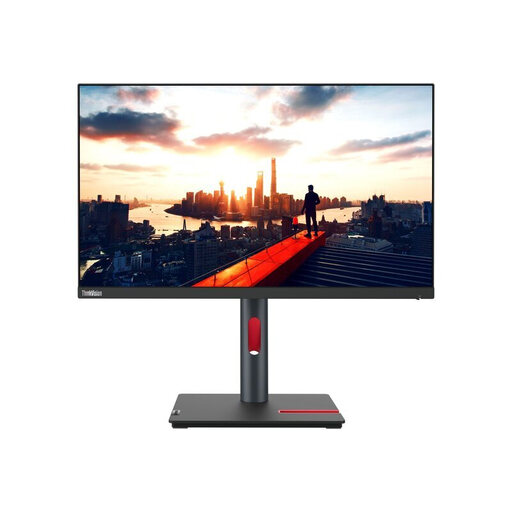
Lenovo ThinkVision P24h-30
Why this product suits this profile: A good choice for professional workspaces where USB-C, network access and flexible positioning are important.
The USB-C specifications cover Power Delivery of up to 100 watts, data transfer and video input.
QHD IPS panel, four-port USB hub, Gigabit Ethernet, daisy-chain support and 155 mm of height adjustment.
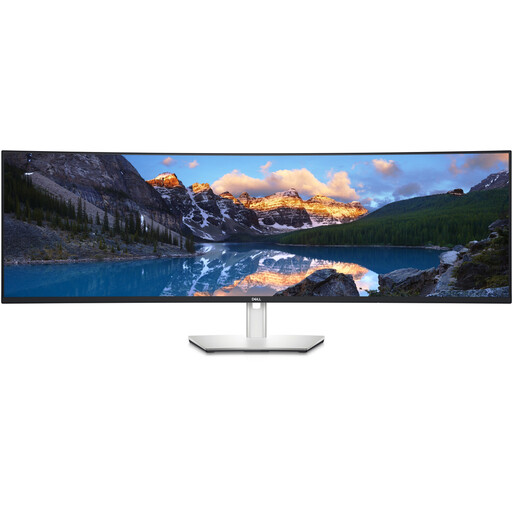
DELL UltraSharp U4924DW 49-inch monitor
Why this product suits this profile: For multitasking, financial dashboards, video editing and running several applications side by side, a 32:9 display can reduce the need to switch between two monitors.
The product specifications clearly list its dimensions, weight and stand features, so you can check in advance whether it will suit your workspace.
49 inches, 5120 × 1440 pixels, IPS panel, USB-C with 90 watts of power, RJ45 Ethernet and a height-adjustable stand.
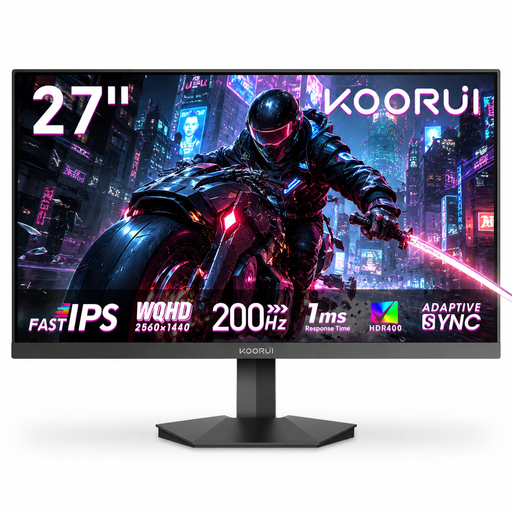
KOORUI G2721P 27-inch QHD gaming monitor
Why this product suits this profile: A good option for gaming and everyday media use if you’re looking for QHD, a high refresh rate and a 27-inch screen.
The product specifications list the ports, VESA size and recommended DisplayPort connection for 200 Hz.
Fast IPS panel, QHD resolution, 200 Hz, 1 ms overdrive, Adaptive Sync and two HDMI 2.0 ports.
Looking for more options?
We’ve put together a complete, regularly updated list of products that meet these strict selection criteria and fully comply with the safety regulations in force in the EU.
Frequently asked questions about monitors
What size monitor is best for working from home?
For a single workstation, 24 to 27 inches is often a practical choice. A 27-inch monitor gives you more room for several windows. If you’re considering a 34- or 49-inch model, check your desk width, viewing distance and graphics card connection first.
Is a 4K monitor worth it for office work?
It depends on the screen size and the applications you use. 4K can provide sharper detail for spreadsheets, layouts and other content. The right scaling settings in your operating system are also important for comfortable, smooth working.
How much does it cost to run a monitor?
Power consumption, daily usage time and your electricity tariff all affect the cost. The energy rating on the EU label is shown in kilowatt hours per 1,000 hours. A monitor with lower power consumption will cost less to run, while large, high-resolution or particularly bright models may use more energy.