
Buying a monitor: The key criteria for the office, home office and gaming
A new monitor should display images sharply, sit comfortably on your desk and work well with your existing devices. Yet product descriptions often lead to unsuitable purchases. Common problems include high refresh rates without compatible connections, ergonomic claims without genuine height adjustment and seemingly cheap models with too few ports.
This guide explains which technical specifications really matter when choosing a monitor and which models suit different usage profiles.
Common pitfalls when buying a monitor
1. Refresh rate without a suitable connection
A 100 Hz monitor or 120 Hz monitor can display movement more smoothly than a 60 Hz model. However, the higher frequency can only be used if your computer, graphics card and connection support it. The HDMI version, DisplayPort and operating system settings all need to work together.
An HDMI monitor is therefore not automatically suitable for every refresh rate. Before buying, check the maximum resolution and frequency supported by the relevant connection on your computer.
2. Don’t assess response time in isolation
Figures such as “1 ms” often refer to specific measurement methods, such as MPRT or GTG. These values cannot be compared directly. A monitor with 1 ms MPRT is not necessarily faster in every situation than a model with 4 ms GTG.
For casual gamers, AdaptiveSync, a suitable refresh rate and the graphics card’s actual performance are also important considerations alongside response time.
3. Ergonomics and ports are often underestimated
A stand with tilt adjustment only does not allow you to adjust the screen height. For longer working sessions, a monitor with height adjustment, swivel function and pivot mode is usually more practical. A monitor with USB-C can also help simplify your desk if it transfers the video signal, data and power through a single cable.
Also check for VESA compatibility if you may want to use a monitor arm or wall mount later.
Monitor parameters to check before buying
Screen size and resolution
A 24-inch monitor with Full HD and 1,920 × 1,080 pixels is often suitable for office work, streaming and everyday applications. With a diagonal of around 23.8 to 24 inches, Full HD provides a familiar image and does not place particularly high demands on the graphics card.
A QHD monitor with 2,560 × 1,440 pixels displays more content and finer details. This is useful for spreadsheets, programme windows, image editing and multitasking. At 27 inches, QHD often looks more balanced than Full HD, but it requires more graphics performance.
Ultra-wide models are also available for larger workspaces. They require sufficient desk space and should be selected based on their width, depth and your viewing distance.
Panel technology
An IPS monitor typically provides stable colours and wide viewing angles of up to 178 degrees. This is practical for office work, media and applications where several people are looking at the screen.
According to their product specifications, VA panels can offer higher static contrast ratios. This may be relevant for dark content. However, your choice should also take viewing angles, colour gamut coverage, brightness and intended use into account.
Refresh rate and synchronisation
60 Hz is generally sufficient for office applications. A 100 Hz monitor or 120 Hz model can make scrolling and movement visibly smoother. For gaming, you should also check whether AdaptiveSync or comparable synchronisation is supported.
Refresh rate alone does not turn a business monitor into a gaming monitor. Response behaviour, graphics card, connections and the games you prefer all need to be considered together.
Ergonomics, eye comfort and energy consumption
Useful ergonomic features include:
- Height adjustment for positioning the top edge of the screen correctly
- Tilt and swivel adjustment to suit your seating position
- Pivot function for long documents or portrait-format applications
- VESA 100 × 100 mm for monitor arms and mounts
- a matt or anti-glare surface to reduce distracting reflections
Flicker-Free and Low Blue Light functions are often promoted as features of an eye-friendly monitor. How noticeable they are depends on the settings, room lighting, viewing distance and individual habits. Regular breaks and a suitable screen position remain advisable regardless of the model.
Our selection by user profile
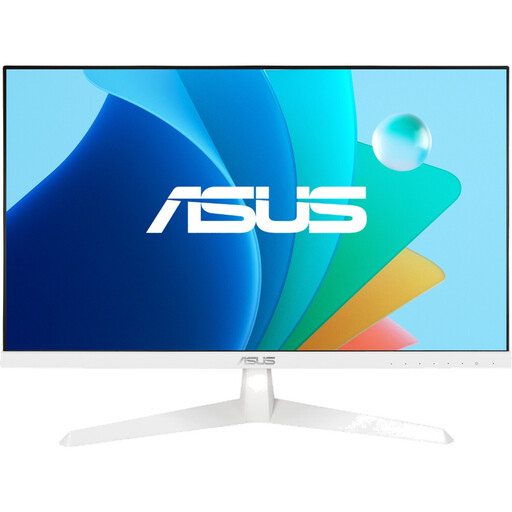
ASUS Eye Care VY249HF-W
Why this product suits the profile: This 24-inch Full HD monitor combines an IPS panel with 100 Hz and a white casing. It is suitable for office work, streaming and occasional gaming with modest requirements.
The technical specifications clearly state the connection, resolution and refresh rate. AdaptiveSync is included; the ergonomic features cover tilt adjustment but not height adjustment.
IPS panel, 1,920 × 1,080 pixels, 100 Hz, HDMI 1.4 and VESA 100 × 100 mm.
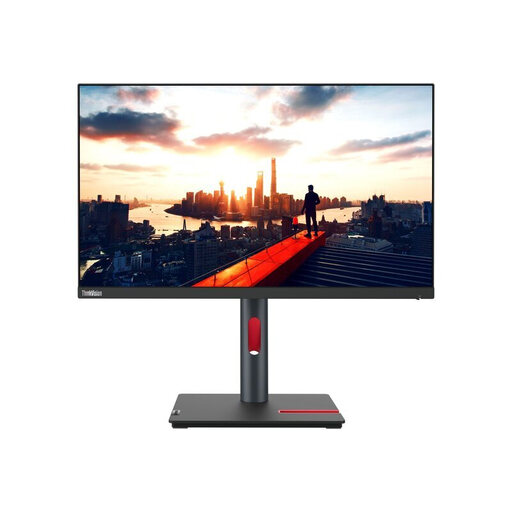
Lenovo ThinkVision P24h-30
Why this product suits the profile: This 23.8-inch QHD monitor is aimed at home-office users, creatives and businesses that need high resolution, colour settings and flexible workplace connectivity.
USB-C transfers video and data and, according to the product specifications, provides up to 100 W Power Delivery. The stand is height-adjustable, rotatable, swivel-adjustable and tiltable.
QHD resolution, 99% sRGB, four USB 3.2 ports, Gigabit Ethernet and 155 mm of height adjustment.
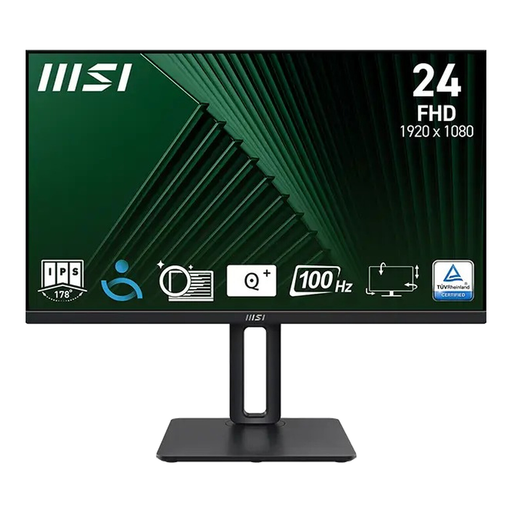
MSI PRO MP245PG
Why this product suits the profile: This business monitor is designed for extended working sessions and a range of applications. Its selection of ports is suitable for both older and current computers.
The stand offers 120 mm of height adjustment, as well as pivot, swivel and tilt functions. HDMI, DisplayPort and VGA help reduce compatibility issues.
23.8 inches, Full HD, 100 Hz, AdaptiveSync, built-in 4 W speakers and VESA support.
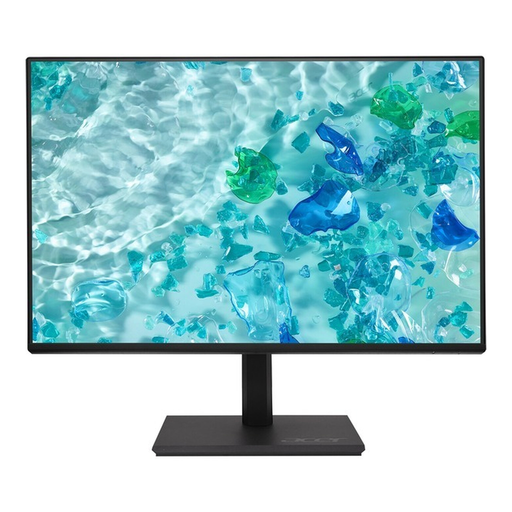
Acer Vero B247YGbmiqprx
Why this product suits the profile: This 24-inch monitor combines Full HD with 120 Hz and an adjustable ErgoStand. It is suitable for office work, multimedia and occasional gaming.
The ergonomic functions are clearly specified: up to 165 mm of height adjustment and a 90-degree pivot. Alongside HDMI, VGA and DisplayPort are also available.
120 Hz, IPS panel, Full HD, VESA 100 × 100 mm and a stated 36-month bring-in warranty.
Looking for more options?
We have put together a complete, regularly updated list of products that fully meet these strict selection criteria and the safety regulations applicable in the EU.
Frequently asked questions about monitors
What monitor size is suitable for a home office?
A 24-inch monitor takes up comparatively little space and is well suited to Full HD and traditional office tasks. For multiple windows, spreadsheets and creative applications, a 27-inch QHD monitor can provide more workspace. Desk depth and viewing distance are the key factors.
How long does a monitor last?
Lifespan depends on operating hours, heat generation, the power supply, environmental conditions and how the monitor is treated. Good ventilation, a stable stand and using the specified power supply can help support safe operation. If you notice visible image defects, damaged cables or unusual heat, stop using the device.
What does it cost to run?
Power consumption is usually given in the product specifications in watts or kilowatt-hours per 1,000 hours. A monitor with higher brightness, a larger screen area or active HDR may require more energy. For a fair comparison, use the same daily usage time and energy-efficiency class.